

Payment Methods
PaymentMethods renders the signed-in company’s payment method on file. A pill names the default method, and a warning sits beside the heading when that card is about to expire. Edit opens a dialog where the other saved methods can be made the default or removed, and a new one added through Stripe. The card loads from the company billing API, so it needs a session on the provider as described in the Drop-in components overview.
Usage
Adding a method renders Stripe’s Payment Element from @stripe/stripe-js and @stripe/react-stripe-js. Both are peer dependencies of the components, so your package manager installs them alongside. They load only when someone opens the Add form, so a page that only shows the method on file never downloads Stripe.
Props
The card
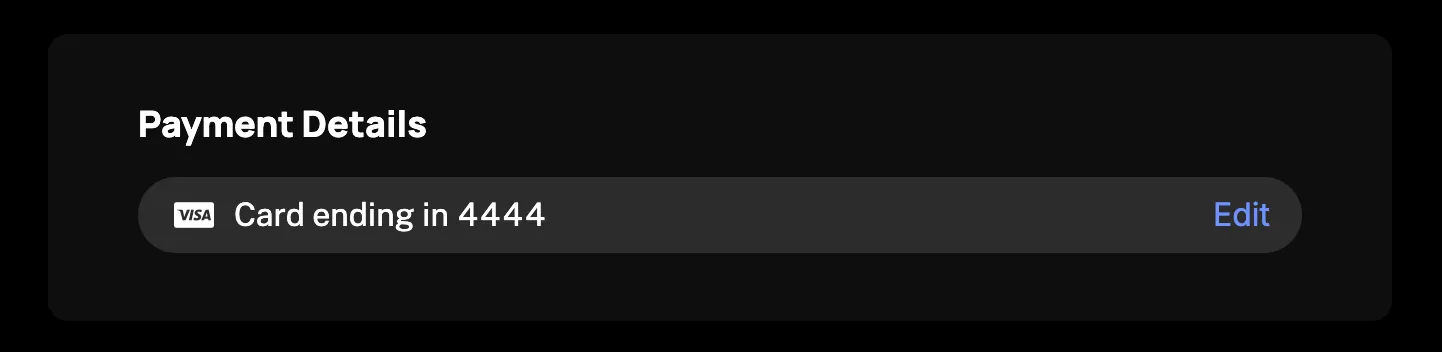
The pill names the default method: “Card ending in 4242”, a bank by its name and the account’s last four digits, a Link account by its email. Each method wears its brand’s mark before the label. With nothing on file the pill reads “No payment method added yet” and offers Add instead of Edit.
When the default card has fewer than four months left, the header says “Expires in 2 mo”, or “Expired” once its month has arrived.
The default is whichever method the server marks: the subscription’s own payment method when it has one, else the customer’s default. A list with no default shows the empty pill and Add until someone picks one, and the dialog lists every saved method under “Choose different payment method”.
The dialog
Edit opens a modal titled “Edit payment details”, closed by Escape, the backdrop, or the control in its header. It repeats the heading and the expiry warning, then the pill, with Remove in place of Edit. “Choose different payment method” unfolds the other methods, each with when a card expires (“Expires 8/27”), Set default, and a remove control where canRemove allows, then a full-width “Add new payment method” that opens the form.
Remove, Set default, “Add new payment method”, and “Try again” are disabled while a change is in flight; the toggle, the close control, and the card’s Edit stay available. A change that lands leaves the dialog as it was over the refreshed list. One that fails is reported at the foot of the dialog, “Error updating payment method. Please try again.” or “Error deleting payment method. Please try again.”, with “Try again” to re-run it.
Adding a method
The form mints a Stripe SetupIntent, mounts Stripe’s Payment Element on it, and confirms the setup in place. The saved method becomes the default, and the dialog returns to it. “Save payment method” waits until Stripe calls the fields complete and reads “Loading” while it saves. “Select existing payment method” goes back without saving. With nothing on file the dialog opens straight onto the form.
Stripe’s own wording shows for a declined card or an invalid field. Any other failure reads “A problem occurred while saving your payment method.” If minting the SetupIntent fails, the form reads “Error initializing payment method change. Please try again.” If the form cannot load, including when the SetupIntent comes back without a client secret, including when the browser blocks Stripe or its fields do not come up within ten seconds, it says so and suggests the browser’s privacy settings may be the cause.
Stripe’s fields render in an iframe your CSS cannot reach, so the form themes them from the --schematic-* tokens as the browser resolves them, dark mode included.
Checkout settings
checkoutSettings takes the same collect-email, collect-address, and collect-phone options you configure for checkout in Schematic, so you can pass them through as they are. checkoutPrefill supplies the values the form starts with:
The prefilled name is sent as the billing name whenever the address fields show. Each setting defaults to false.
Rules the server enforces
- Any method can be removed, the default included, except the last one on a paid subscription that is active, trialing, or past due. Each method’s
canRemovesays which, and the remove controls show only where it istrue. - Removing the default promotes nothing. The company has no default until someone sets one.
- A method added through the form becomes the default. A hand-built form should call
setDefaultonce Stripe confirms the method.
These rules live on the server, so a hand-built UI gets the same answers from usePaymentMethods.
Errors
A failure with nothing to show replaces the card’s content with a short message and a “Try again” button. A 404 reads “Payment methods are not available”, because that status means the account is not enabled for the company billing endpoints. Every other failure, and a 404 under a method already loaded, reads “Could not load payment methods”. A refetch that fails with a method on screen is reported under it rather than replacing it.
Neither message is the error’s own text. In development the component logs the underlying error to the console beside the copy.
Icons
The brand marks, the dialog’s close control, and the chevron on “Choose different payment method” are glyphs from the Schematic icon font, which <SchematicStyles /> inlines as a data: URL. If your Content Security Policy sets font-src, add data: to it, or the glyphs render empty. Every glyph is aria-hidden; the close and remove controls are icon-only, so a blocked font leaves them empty.
If you replace SchematicStyles with your own sheet, render <style>{iconsCss}</style> once, exported from the same entry point. The icon package’s own stylesheet names its rules differently and does not light the glyphs up.
Strings
Every word the card renders resolves through strings on the component, then on the provider, then the provider’s translate, then English. See Localization for how the chain works. These are the keys:
locale is also handed to Stripe for the form’s own labels.
Markup
This is what the card renders, for a host styling it without SchematicStyles. Styling and theming lists the shared classes.
The dialog is a native <dialog class="schematic-dialog schematic-payment-methods__dialog"> with a schematic-dialog__header, schematic-dialog__title, and schematic-dialog__close, then a schematic-dialog__body. Inside it:
- The pill: the card’s
schematic-headerandschematic-payment-methods__currentagain, its Remove button carryingschematic-payment-methods__remove-current. - The toggle:
schematic-payment-methods__chooseholds aschematic-payment-methods__choose-labeland aschematic-payment-methods__chevron. - The list:
schematic-payment-methods__listholdsschematic-payment-methods__rowitems, each withschematic-payment-methods__set-default, plusschematic-payment-methods__expiresfor a card with an expiry andschematic-payment-methods__removewhere the method can be removed. - Add new:
schematic-payment-methods__add-new. - The form:
schematic-payment-methods__form, whosedata-stateispending,error, orready, with Stripe’s fields inschematic-payment-methods__fields, the email field inschematic-payment-methods__field(aschematic-payment-methods__field-labeland aschematic-payment-methods__input), the address fields inschematic-payment-methods__address,schematic-payment-methods__save,schematic-payment-methods__select-existing, and its failures inschematic-payment-methods__form-error. - A failed write: a
<p class="schematic-status-note schematic-error schematic-payment-methods__error" role="alert">holdingschematic-payment-methods__error-messageandschematic-payment-methods__error-retry.
The pending and error states follow the other cards: data-state="pending" with a schematic-skeleton, or data-state="error" with a schematic-status row.
Build it yourself
usePaymentMethods returns the list with setDefault and remove. useSetupIntent mints the intent a Stripe form confirms. derivePaymentMethods splits the list into the default and the others, with a label, brand mark, last four digits, and expiry per row.