

Roles & Permissions
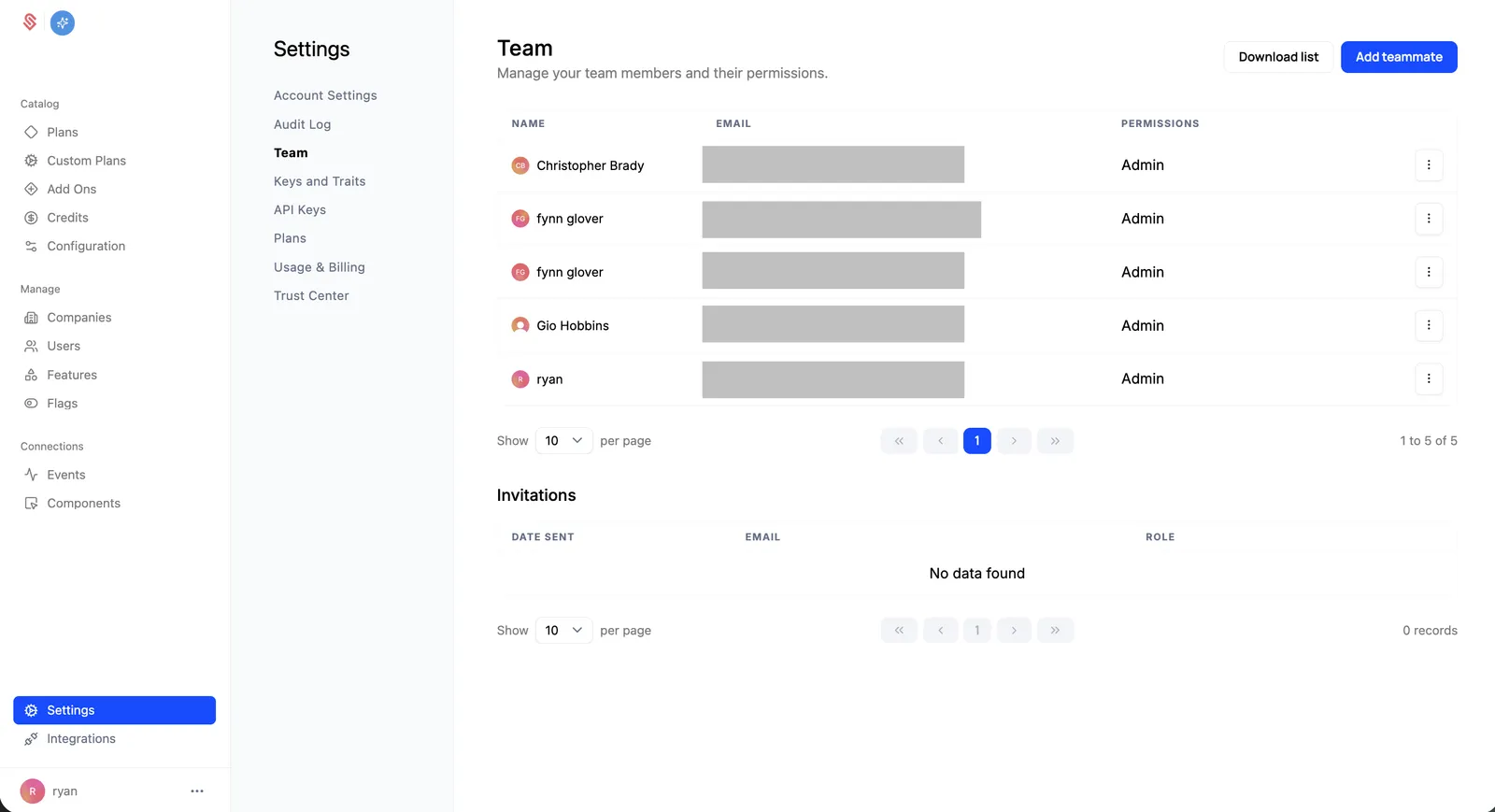
Schematic uses role-based access control (RBAC) to govern what each of your team members can do. You manage your team and their access from Settings → Team.
RBAC is available on paid plans. You can upgrade to the growth plan in Settings > Usage & Billing to enable RBAC.
Roles
Every team member has one of two roles:
- An Admin has full access to everything in the account, across all environments, and can manage team members, billing, and every resource. Permission toggles do not apply to admins, who always have full access.
- A Member gets exactly the permissions you grant and nothing else. A member with no permissions can sign in and view data but cannot make changes.
How permissions are scoped
For members, permissions are granted at two levels:
- Account permissions apply across your whole account, regardless of environment. These cover catalog-wide resources.
- Environment permissions are granted per environment. A member can have different permissions in your Production environment than in a Sandbox or Development environment, which lets you give someone freedom to experiment in a sandbox while restricting what they can change in production.
Account permissions
These apply across all environments:
Environment permissions
These are granted per environment:
Assigning roles and permissions
- Go to Settings → Team.
- Click Add teammate to invite someone, or click Edit on an existing member.
- Choose a role. If you select Member, the permission controls appear.
- Toggle the account permissions and, for each environment, the environment permissions you want to grant. Use Select all / Unselect all to set a whole group at once.
- Save. The teammate’s access updates immediately.
Only admins can add teammates and change roles or permissions.
Example: a sales or customer success role
A common setup is a teammate who can manage customer accounts and exceptions but should not change your core catalog. Grant a Member these environment permissions (typically in Production):
Leave the account permissions (Flags, Features, Plans & Add-ons) off so they cannot change your catalog, and leave Users, Plan Entitlements, and Plan Versions off as well.