For AI agents: a documentation index is available at the root level at /llms.txt and /llms-full.txt. Append /llms.txt to any URL for a page-level index, or .md for the markdown version of any page.
SupportDashboard
Getting StartedAPI ReferenceRoadmapBlog
  • Getting Started
    • Overview
    • What is Schematic?
    • Concepts
  • Using Schematic
    • Who Uses Schematic
  • Quickstart
    • Quickstart
    • Account Setup
    • Entitling a Feature
    • Tracking Usage
    • Components
    • Identifying Users
    • Setup the SDK
  • Using Feature Flags
    • Overview
    • Flags
    • Features
    • Tracking Feature Usage
    • Company Overrides
    • Feature Types
  • Building Your Catalog
    • Overview
    • Plans
    • Managing Company Plans
    • Configuring the Catalog
    • Add Ons
    • Trials
  • AI Tooling
    • For Developers
  • Setting Up Billing
    • Overview
    • Usage Based Billing Models
    • Seat Based Billing Models
    • Credit burndown
  • Using UI Components
    • Overview
      • Overview
      • Create a Component
      • Add to Your App
      • Element Library
      • Advanced Usage
  • Developer Resources
    • Concepts
    • Key Management
    • Environments
    • Entity Relationship Diagram
  • Production Readiness
    • Availability
    • Observability & Support
    • Security
  • Integrations
    • Segment Integration
    • Clerk Integration
    • WorkOS Integration
    • Salesforce Integration
    • Hubspot Integration
  • Playbooks
    • Overview
    • Creating a metered feature
    • Backfills and usage corrections
    • Rolling out beta functionality with Flags
    • Handling customer exceptions and feature trials
    • Automatically provision customers using Stripe
    • Build a slack webhook
LogoLogo
SupportDashboard
On this page
  • Configuring the Catalog
  • Creating a New UI Component
Using UI ComponentsCustomer Portal

Create a Component

Was this page helpful?
Previous

Add to Your App

Next
Built with

Before embedding a component in your application, you’ll create and configure it in Schematic. This covers both setting up your catalog (so the component has the right plans and pricing to display) and building the component itself.

Configuring the Catalog

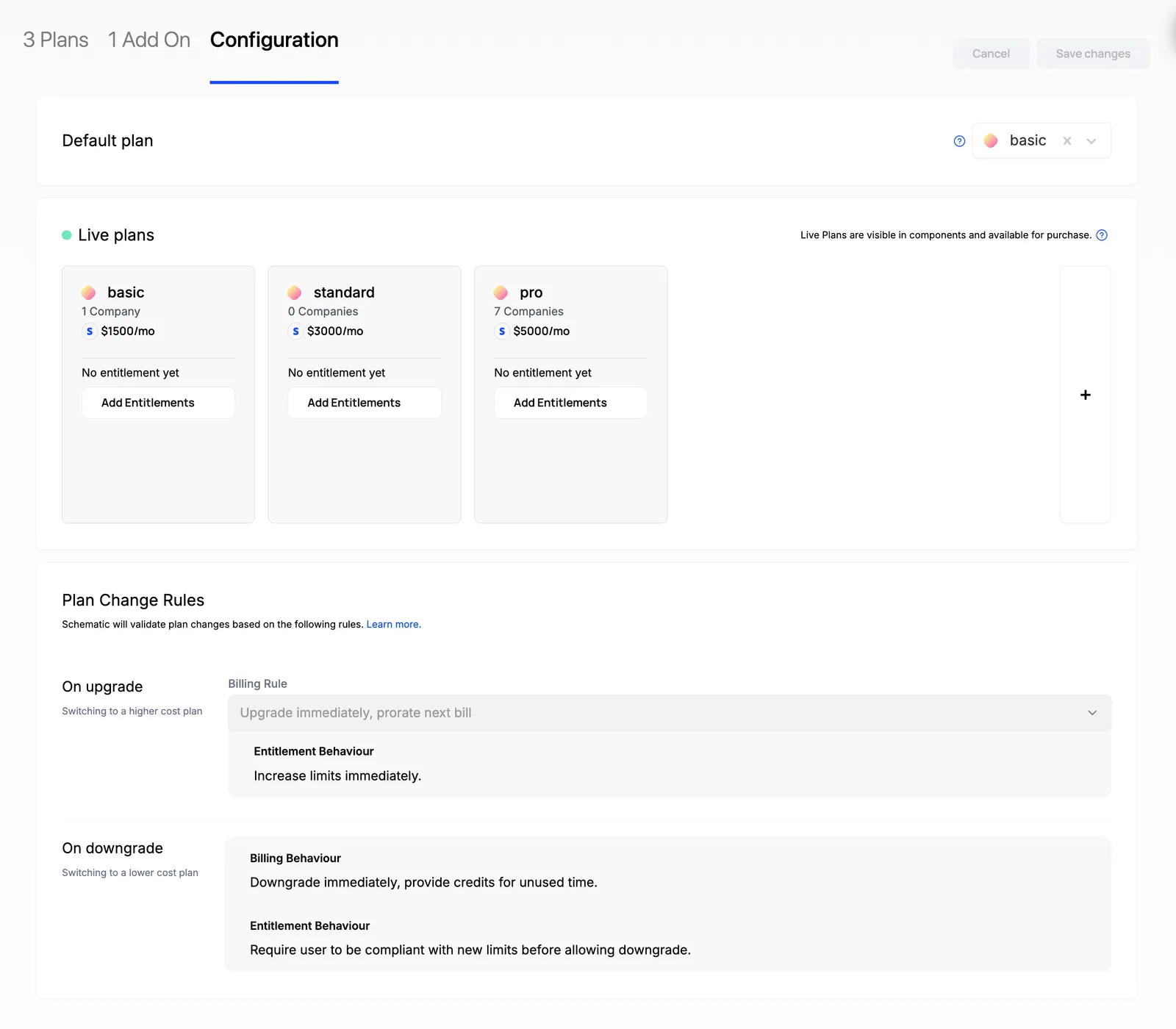
  1. Navigate to Catalog > Configuration
  2. Choose a default plan that all companies will be assigned if there is no formal subscription (optional)
  3. Choose “live plans” (those that your end users can choose to downgrade from or upgrade to)
  4. Save changes
Plans must be associated with Stripe Products to be added to Live Plans. If you don’t use Stripe, skip this section.
Creating a New UI Component

Once you’ve configured your Catalog, Components will be populated with your data rather than sample data (if you skip to this section, you can simply use the sample data).

  1. Navigate to Components in the navigation bar
  2. Click New Component and choose “Customer Portal” as an example
  3. Click into the new Component you created and you should see a rendered Customer Portal in the Schematic Component Builder
  4. Press Save & Publish and follow the steps to drop into your application
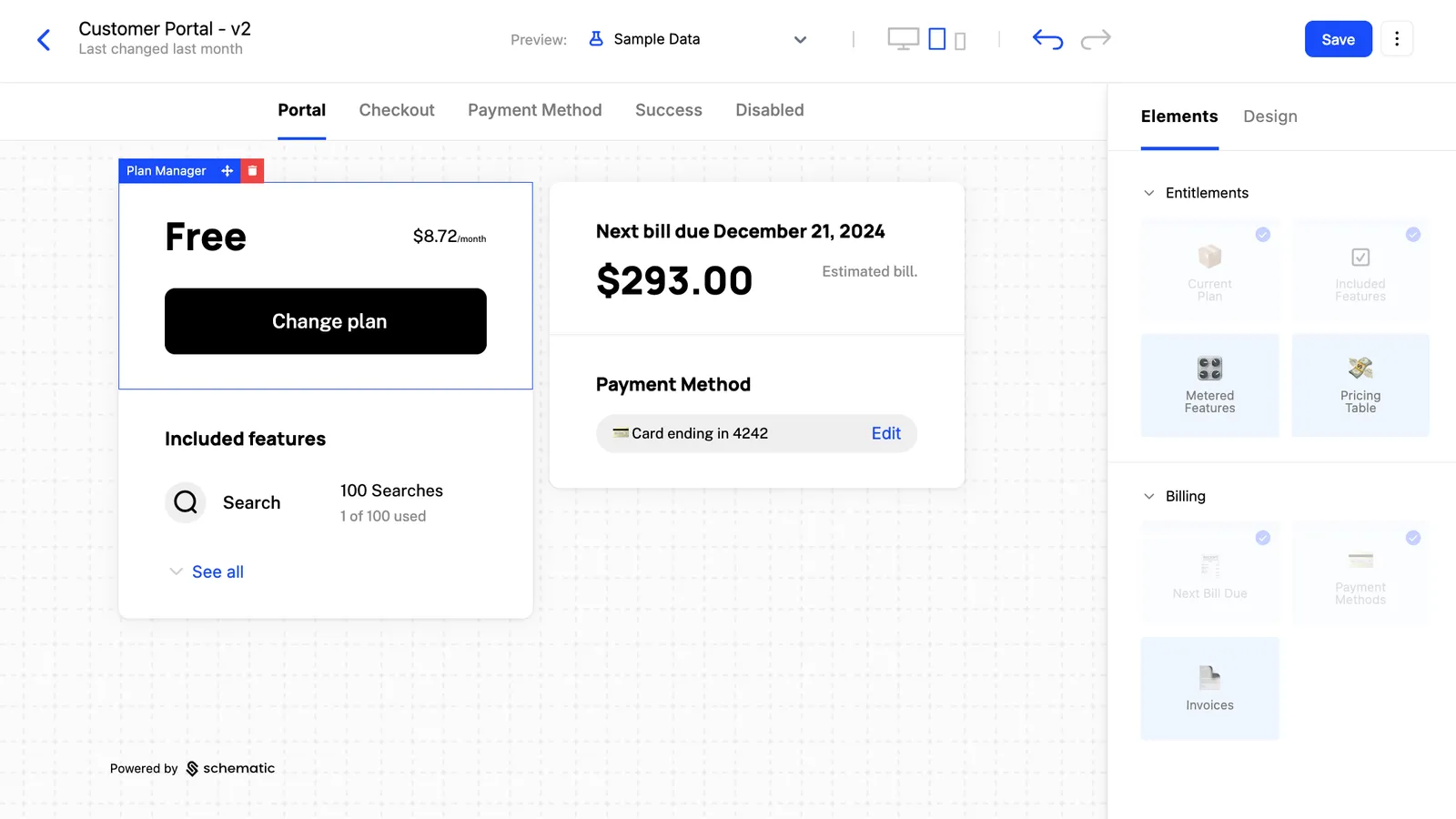
Components are fully customizable both in the elements they are made up of (e.g. Current Plan, Included Features, Invoices, etc.) and in how they look and feel (so it appears native to your product).

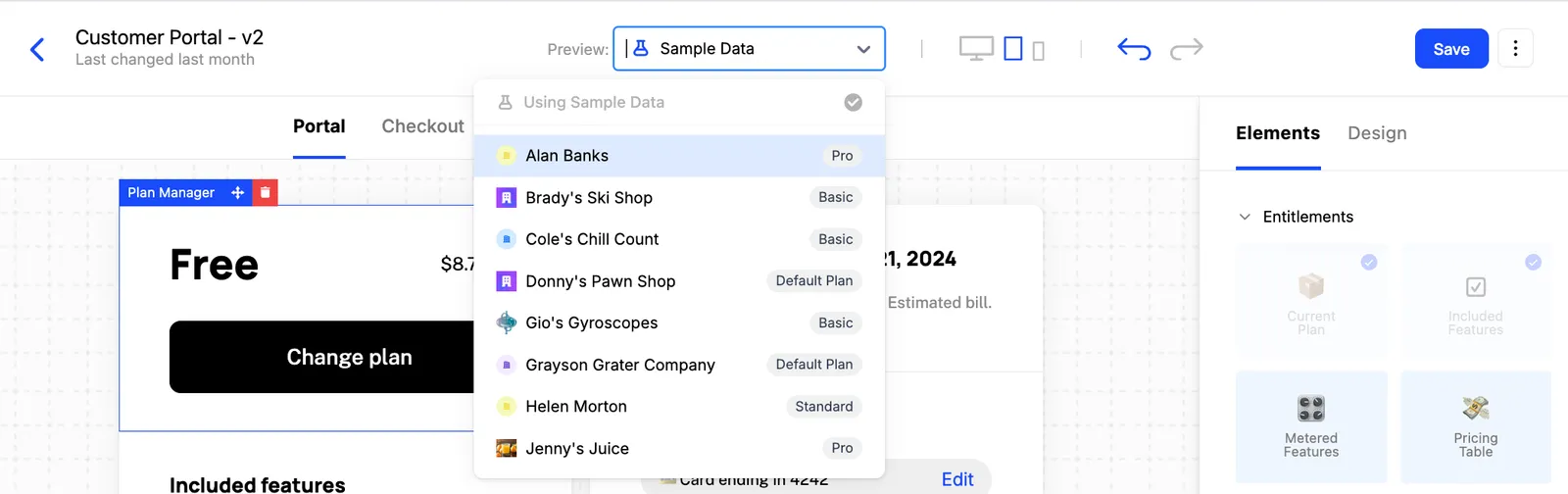
Additionally, you may preview as any company in your account using the dropdown at the top of the builder.