> If you are setting up, configuring, or answering questions about Schematic, connect the
> Schematic MCP server before working from these pages. It reads and writes plans, features,
> entitlements, and overrides against the real account, so what you report and what you build
> match what actually exists.
>
> The server is at https://api.schematichq.com/mcp
>
> From Claude, ChatGPT, or another chat assistant, add it as a custom connector:
> https://docs.schematichq.com/working-with-ai
>
> From a coding assistant such as Claude Code, Codex, or Cursor:
> https://docs.schematichq.com/building-with-ai
>
> For clean Markdown of any page, append `.md` to the page URL. For a complete page index,
> see https://docs.schematichq.com/llms.txt
# Advanced Usage
> Open checkout from your own paywall, prefill its fields, react to plan changes, and collect tax at checkout.
The Schematic Components library provides several advanced features for customizing and extending the default behavior.
## Launch Checkout Programmatically
A common billing use case is to present a user with a paywall, and then open a checkout flow to quickly allow them to upgrade their plan. If you need to show the user's current plan name in the paywall (e.g. "You're on the Free plan"), the React and Vue SDKs provide that data directly. See the [React SDK docs](/developer_resources/sdks/react#company-plan-information) or [Vue SDK docs](/developer_resources/sdks/vue#company-plan-information) for details.
Imagine a user is trying to create their 6th AI-generated image, but their current plan only includes 5 images per month. You can present them a paywall explaining they are at their limit and prove an "Upgrade to the Pro Plan" button. When they click the upgrade button, you can create a seamless upgrade experience by:
1. Opening the checkout flow
2. Pre-selecting the Pro plan they need to upgrade to
Here's a barebones implementation of this:
```tsx
"use client"
import {
CheckoutDialog,
EmbedProvider,
useEmbed,
} from "@schematichq/schematic-components";
import { useEffect, useCallback } from "react";
const PLAN_ID = ""; // plan to be preselected
function Checkout() {
const { initializeWithPlan, layout, setAccessToken, stale, hydrate } = useEmbed();
const checkout = useCallback(async () => {
const response = await fetch("/api/accessToken");
const result = await response.json();
setAccessToken(result.accessToken);
initializeWithPlan({ planId: PLAN_ID });
}, [setAccessToken, initializeWithPlan]);
// this is necessary when launching straight to checkout
useEffect(() => {
if (stale) {
hydrate();
}
}, [stale, hydrate]);
return (
<>
{layout === "checkout" && createPortal(, document.body)}
)
}
export default function CustomCheckout() {
return (
);
}
```
The key element is `initializeWithPlan`, an alternate entry point to the checkout flow. Above, we pass a plan ID to the function, which will pre-select the plan in the checkout flow.
In the above example, while the plan is pre-selected, the user will still be able to navigate the full checkout flow. A common desire is to take the user directly to the payment step, and remove the options to change plan or add-on choices. To achieve this, `initializeWithPlan` can be called with an object of additional options. The full set of options are below.
```ts
const config = {
planId: 'plan_abc123', // pre-select a Plan
addOnIds: ['plan_addon123'], // pre-select 1 or more add-ons
period: 'year', // pre-select a billing period ("month" or "year")
currency: 'EUR', // pre-select a currency (case-insensitive)
showCurrencySelector: false, // if false, hide the currency dropdown in checkout
promoCode: 'SUMMER20', // pre-apply a Stripe promotion code
payInAdvanceQuantities: { // pre-fill pay-in-advance quantities, keyed by feature ID
feat_seats: 3
},
skipped: {
planStage: true, // if true, skip plan selection
addOnStage: true, // if true, skip add-on selection
creditStage: true, // if true, skip credit selection
usageStage: true, // if true, skip the plan's pay-in-advance quantity stage
addOnUsageStage: true // if true, skip the add-ons' pay-in-advance quantity stage
},
hideSkipped: true, // if true, hide skipped stages from breadcrumb navigation
startTrialIfAvailable: true // if true (default), start a trial when the plan is trialable and the company is eligible
};
initializeWithPlan(config);
```
Every field is optional. Pre-selection and stage skipping are independent, so you can pre-select a plan and still let the user review it, or skip a stage without pre-selecting anything for it. When `skipped` is omitted entirely, all stages are shown with your pre-selected values already in place. `period` defaults to the company's current billing period, or to `"month"` when it has no subscription.
When the pre-selected plan offers a trial and the company is eligible, `initializeWithPlan` starts checkout in trial mode by default. This matches the behavior of the in-dialog "Start trial" button, so customers using the bypass flow get the same trial they would have gotten by clicking through the plan stage. Pass `startTrialIfAvailable: false` to charge immediately instead.
`currency` is most useful in flows that skip the plan stage, where the customer never gets a chance to choose one. It is ignored when the company already has an active subscription, because that subscription's currency is locked, and when the value is not among the available currencies, in which case checkout falls back to the first available one. Pairing `currency` with `showCurrencySelector: false` pins checkout to a single currency the customer cannot change. The selector is already hidden when only one currency is available or the subscription currency is locked, so `showCurrencySelector` has no effect in those cases.
`promoCode` takes the customer-facing Stripe promotion code, such as `"SUMMER20"`, not the underlying coupon ID. The discount is applied on load, so the previewed charges reflect it and it is sent with the final checkout request. The customer can still change or clear it using the discount field in the checkout form, and invalid codes are rejected the same way a manually entered code would be.
`payInAdvanceQuantities` only applies to entitlements whose price behavior is pay-in-advance. Entries for other features, or for unknown feature IDs, are ignored, and values are clamped to whole numbers of zero or greater. Combine it with `skipped.usageStage` and `skipped.addOnUsageStage` to land the customer directly on the payment step with quantities already set.
### Pre-filling checkout fields
If your application already knows the customer's billing email or name, you can pre-populate those fields in the checkout payment form so the user does not have to retype them. Pass a `checkoutPrefill` prop to `EmbedProvider`:
```tsx
```
Pre-filled values are only applied to fields the checkout is configured to collect. The email field appears when email collection is enabled, and the name is part of the billing address form. The user can edit any pre-filled value before submitting, and their edits are never overwritten if the prefill value changes.
### Examples
You can see a full example, including error handling and loading states in our example app.
See the code: [https://github.com/SchematicHQ/schematic-next-example/blob/main/src/app/custom-checkout/page.tsx](https://github.com/SchematicHQ/schematic-next-example/blob/main/src/app/custom-checkout/page.tsx)
## Reacting to Plan Changes in the Browser
Schematic components dispatch a `plan-changed` event on the `window` when a checkout completes, so you can run your own logic after a user subscribes, upgrades, downgrades, or unsubscribes. This includes patterns like redirecting users to a cancellation feedback form after they unsubscribe. See [Checkout Flow Events](/components/customer-portal#checkout-flow-events) for the event payload and examples.
## Collecting Taxes
Schematic supports Stripe Tax (and 3rd party tax providers that integrate with Stripe Tax) to simplify collecting tax and ensuring compliance with tax laws. Components can be configured to collect tax information from the user (e.g. billing address) and generate the correct taxes at checkout.
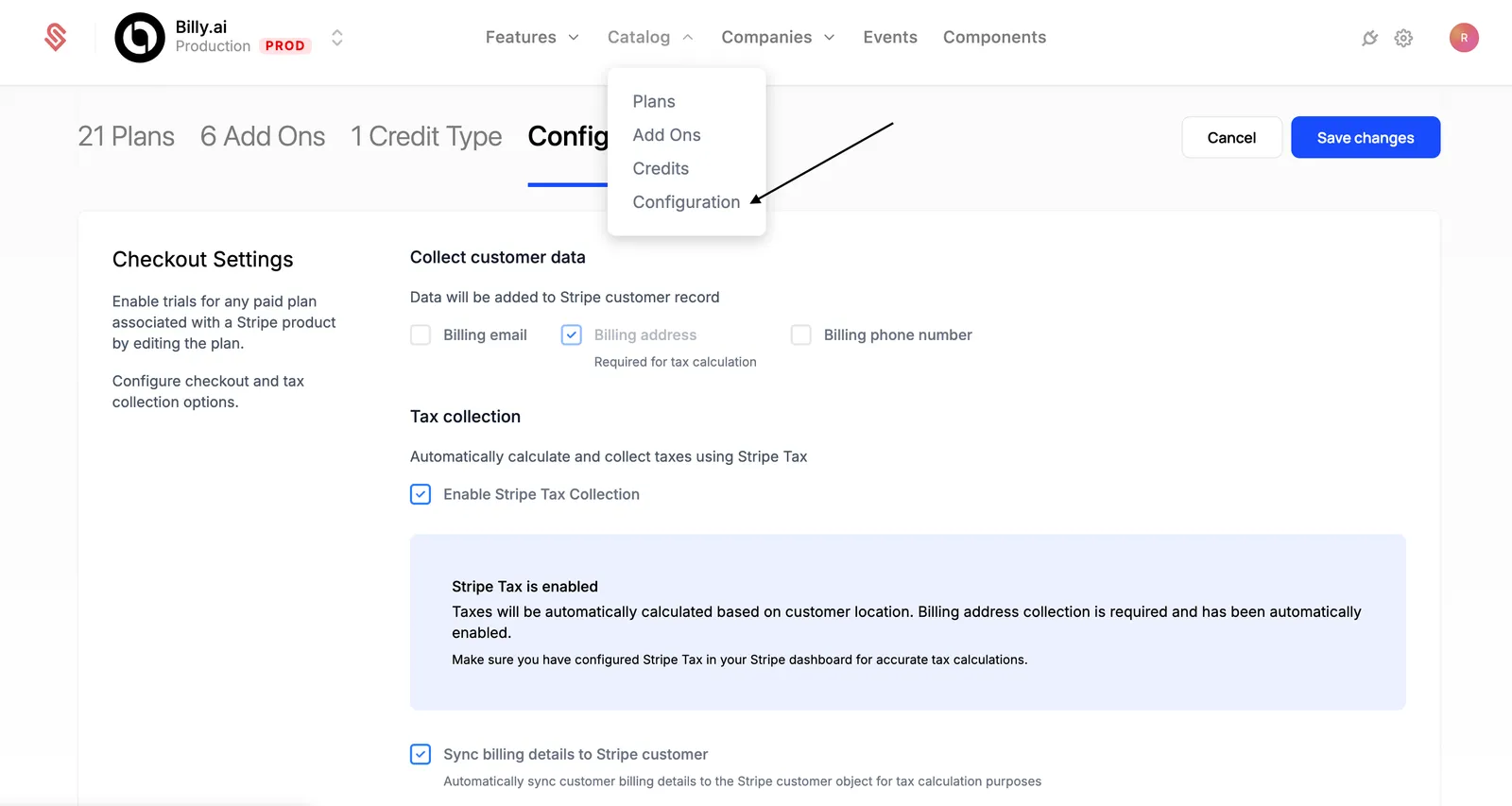
To enable tax collection, head to "Products > Configuration". Scroll down to find Checkout Settings. Here, Stripe Tax can be enabled and the relevant billing information can be set to be collected from the user inside the Schematic Checkout flow.
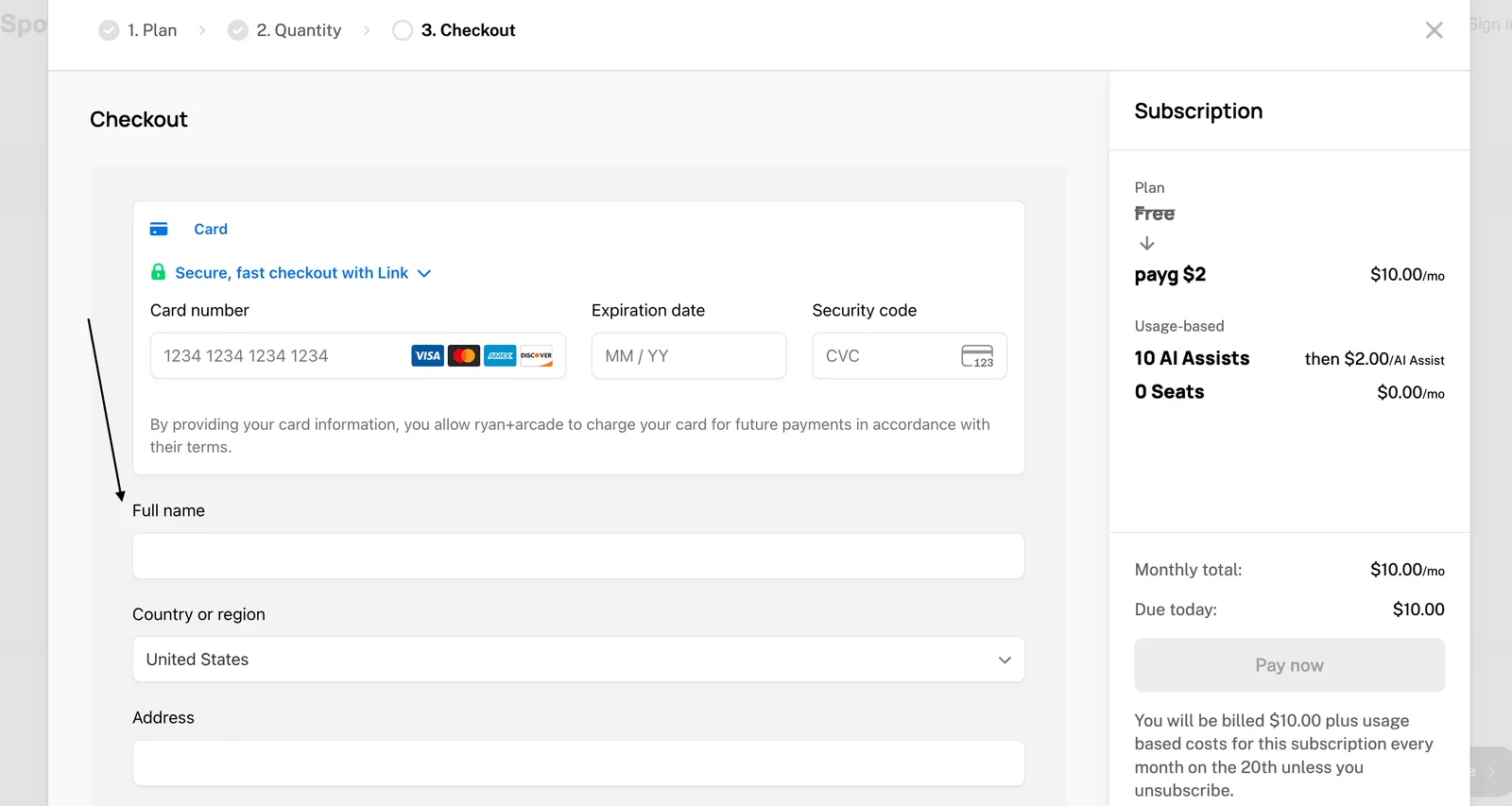
While checking out, the necessary tax information will be collected from the user while they are inputting their payment method.
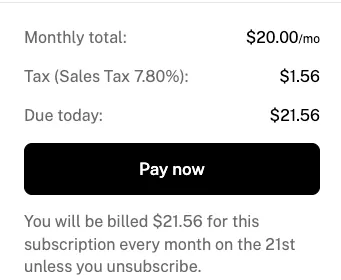
And finally, taxes will be presented on the final checkout step.
#### US Taxes
#### EU Taxes
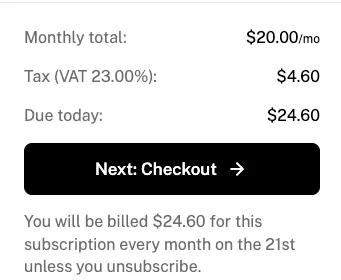
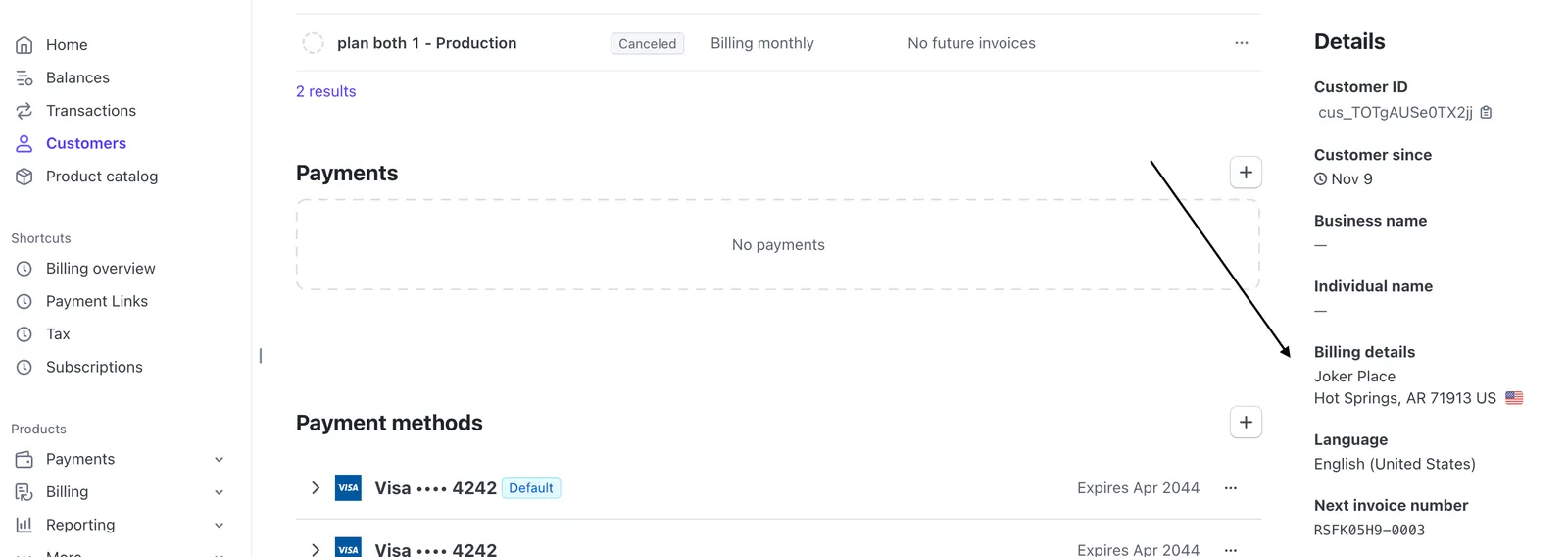
If you choose to save tax information to Stripe, it will appear on the customer details page in Stripe.